Smart Scan
OCR stands for Optical Character Recognition. It is a technology that converts different types of documents, such as scanned paper documents, PDF files, or images captured by a digital camera, into editable and searchable data. The primary purpose of OCR is to recognize and extract text from these non-editable formats so that it can be electronically stored, manipulated, and searched.
Overview
Smart Scan provides powerful OCR (Optical Character Recognition) solutions that transform documents into digital, searchable, and editable content. Our advanced technology supports global document types and offers flexible extraction methods to meet your specific needs.
Key Features
🔍 High Accuracy
Advanced OCR technology with high precision text recognition and extraction capabilities.
🌍 Global Support
Process documents from any country with support for multiple languages and document formats.
⚡ Real-time Processing
Fast document processing with real-time text extraction and immediate results.
🎯 Flexible Extraction
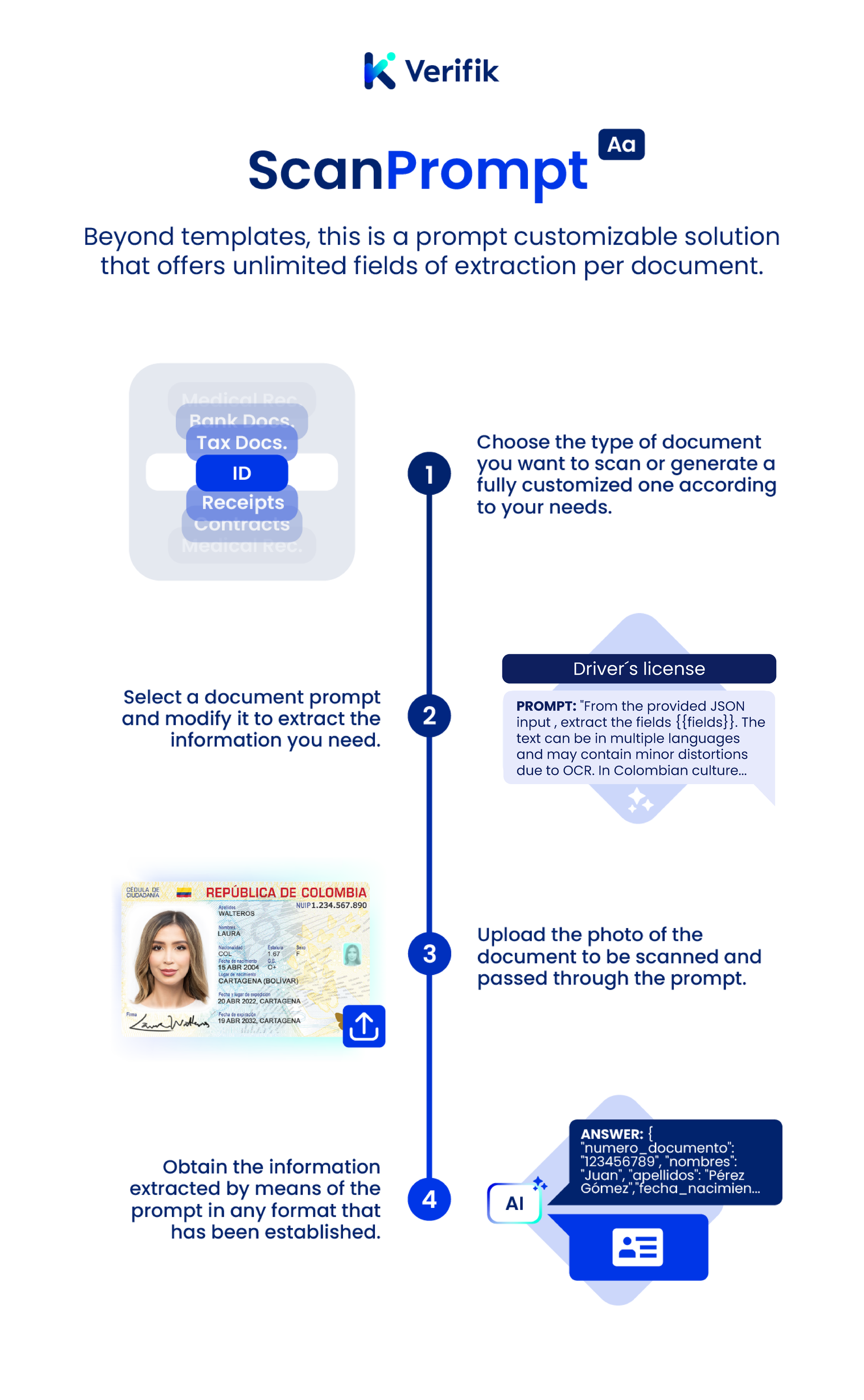
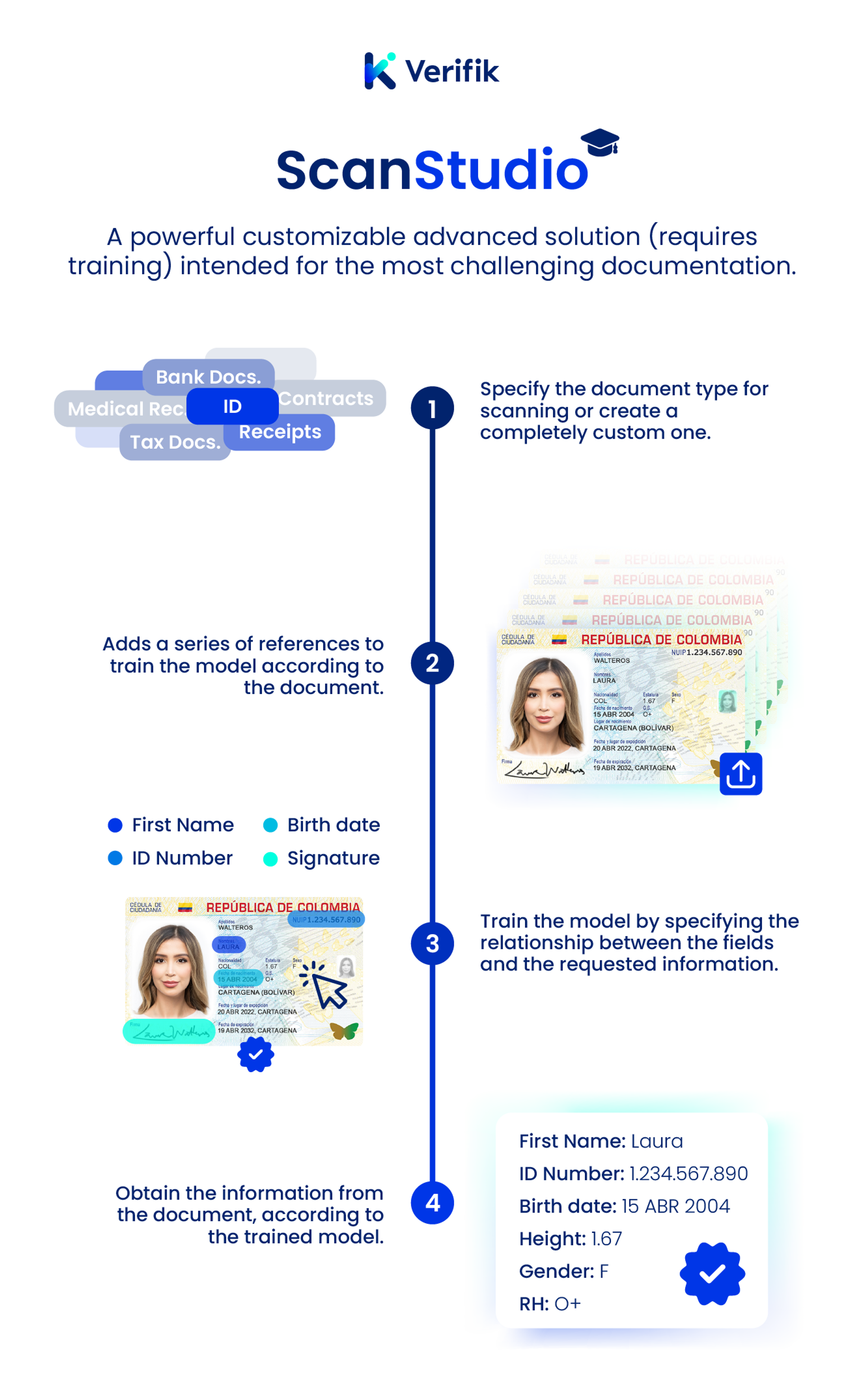
Choose between prompt-based or trained model extraction methods based on your needs.
📊 Unlimited Fields
Extract unlimited fields from documents without restrictions on data points.
🔧 Easy Integration
Simple API integration with comprehensive documentation and developer support.
How OCR Works
Here's how OCR typically works:
1. Image Acquisition
The process begins with capturing the document or image using a scanner, camera, or other imaging devices.
2. Preprocessing
Before OCR can be applied, the captured image is preprocessed to enhance its quality. This may involve tasks like noise reduction, contrast adjustment, and image straightening to ensure optimal recognition accuracy.
3. Text Recognition
OCR software analyzes the preprocessed image and attempts to identify patterns and shapes that correspond to individual characters. It compares these patterns to a vast database of known characters and fonts.
4. Character Identification
The OCR software then matches the recognized patterns with the closest matches in its database and identifies the characters.
5. Text Output
Once the characters are identified, the OCR software reconstructs the recognized characters into editable and searchable text. This output can be saved in various formats like plain text, Word documents, or PDFs with embedded text.
OCR technology has become an essential tool for digitizing large volumes of printed documents, automating data entry processes, and enabling text-based searches within scanned documents. It is widely used in industries like finance, healthcare, legal, and administrative sectors to improve efficiency and accessibility of information.
Verifik OCR Solutions
📝 Scan Prompt
Test our ScanPrompt API with any document you have. Perfect for flexible, prompt-based text extraction.
Learn More🎨 Scan Studio
Test our ScanStudio API with the trained models we have. Ideal for high-accuracy, specialized document processing.
Learn MoreOCR Solutions Interface
Service Comparison
In the following table you will find some considerations of each service, this will help you to make a choice in which specific service it's right for you and your project:
| Properties | SCANPROMPT | SCANSTUDIO |
|---|---|---|
| Accuracy | Medium | High |
| Number of Scan fields | Unlimited Fields | Unlimited Fields |
| Prompt compatible | ✓ | ✗ |
| Training required from Verifik Team | ✗ | ✓ |
| No-code Solution | ✗ | ✗ |
| Supported Documents | Global | Global (Need training) |
Choosing the Right Service
🎯 Choose Scan Prompt When:
- You need flexibility in text extraction
- You want to use custom prompts
- You're working with diverse document types
- You need quick setup without training
- Medium accuracy is acceptable for your use case
🎨 Choose Scan Studio When:
- You need high accuracy extraction
- You're working with specific document types
- You can invest time in model training
- You have consistent document formats
- Accuracy is critical for your application
Getting Started
Authentication
All API requests require a valid JWT token. Include the token in the Authorization header:
Authorization: Bearer <your_jwt_token>
Base URL
https://api.verifik.co/v2/scan
API Endpoints
Scan Prompt
Extract Text with Prompt
POST /prompt/extract
Content-Type: application/json
Authorization: Bearer <your_jwt_token>

{
  "document": "base64_encoded_image",
  "prompt": "Extract all text from this document",
  "fields": ["name", "date", "amount"]
}
Use Cases:
- Flexible text extraction with custom prompts
- Quick setup for diverse document types
- Dynamic field extraction based on prompts
Scan Studio
Extract Text with Trained Model
POST /studio/extract
Content-Type: application/json
Authorization: Bearer <your_jwt_token>

{
  "document": "base64_encoded_image",
  "model_id": "your_trained_model_id",
  "confidence_threshold": 0.8
}
Use Cases:
- High-accuracy extraction for specific document types
- Consistent results for standardized documents
- Production-ready applications requiring reliability
Response Format
All API responses follow a consistent format:
Success Response
{
  "success": true,
  "data": {
    "extractedText": "Complete extracted text content",
    "confidence": 0.95,
    "fields": {
      "name": "John Doe",
      "date": "2024-01-15",
      "amount": "$1,250.00"
    },
    "processing_time": "2.3s",
    "model_used": "scan-prompt-v1"
  },
  "message": "Text extraction completed successfully"
}
Error Response
{
  "success": false,
  "error": "Invalid document format",
  "code": "INVALID_DOCUMENT",
  "details": {
    "supported_formats": ["jpg", "png", "pdf"]
  }
}
Best Practices
Document Preparation
- Image Quality: Ensure documents are clear, well-lit, and high resolution
- Format Support: Use supported formats (JPG, PNG, PDF) for optimal results
- Document Orientation: Ensure documents are properly oriented before processing
- File Size: Keep file sizes reasonable (under 10MB) for faster processing
API Usage
- Batch Processing: Process multiple documents in batches for efficiency
- Error Handling: Implement proper error handling for failed extractions
- Confidence Thresholds: Set appropriate confidence thresholds based on your needs
- Rate Limiting: Respect API rate limits to avoid service interruptions
Security
- Data Privacy: Ensure sensitive documents are handled securely
- Token Management: Keep JWT tokens secure and rotate them regularly
- HTTPS Only: Always use HTTPS for API communications
- Data Retention: Implement proper data retention policies
Rate Limits
- Scan Prompt: 50 requests per minute
- Scan Studio: 30 requests per minute
Start with Scan Prompt for quick testing and prototyping, then move to Scan Studio for production applications requiring high accuracy.
Always test your OCR implementation with sample documents before deploying to production to ensure accuracy meets your requirements.
Support
For technical support and API documentation, contact our support team or visit our developer portal.
Use Cases
Financial Services
- Invoice Processing: Extract data from invoices for automated accounting
- Bank Statement Analysis: Process bank statements for financial analysis
- Receipt Digitization: Convert paper receipts to digital records
Healthcare
- Medical Records: Digitize patient records and forms
- Insurance Claims: Process insurance claim documents
- Prescription Processing: Extract information from prescription forms
Legal
- Contract Analysis: Extract key terms and dates from legal documents
- Court Documents: Process legal filings and court records
- Compliance Forms: Digitize regulatory compliance documents
Administrative
- Form Processing: Extract data from various administrative forms
- Document Archiving: Convert paper documents to searchable digital files
- Data Entry Automation: Reduce manual data entry with automated extraction
Ready to start using Smart Scan? Check out our Scan Prompt API and Scan Studio API documentation to get started quickly.