SmartEnroll Admin - KYC Review & Management
The SmartEnroll Admin KYC Review interface provides administrators with comprehensive tools to review, manage, and make decisions on user KYC verifications. This powerful dashboard allows you to monitor the entire enrollment process, review verification results, and take appropriate actions based on compliance requirements.
Overview
The Admin KYC Review interface is designed to give administrators complete visibility and control over the SmartEnroll verification process. From viewing registered users to reviewing detailed verification results, this interface ensures that you can make informed decisions about user onboarding while maintaining compliance and security standards.
Key Features
User Management
View and manage all registered users in your SmartEnroll projects with comprehensive filtering and search capabilities.
Document Review
Review uploaded documents, OCR extraction results, and document validation status for each user.
Verification Decisions
Make informed decisions on user verifications with detailed scoring, comparison results, and background check information.
User List Overview
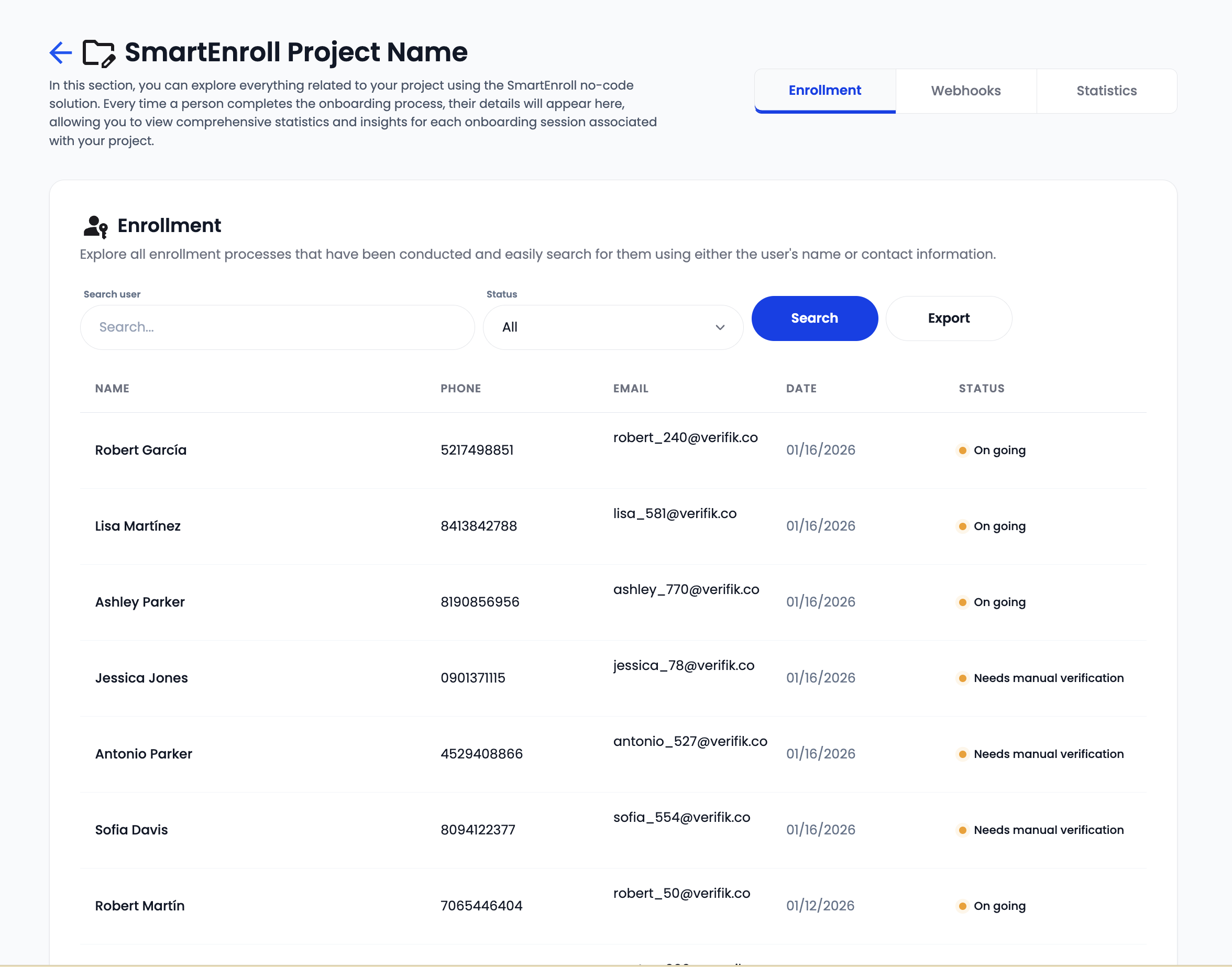
The main dashboard displays a comprehensive list of all users who have registered or attempted to register in your SmartEnroll project.
List Features
The user list provides the following information and capabilities:
-
User Information:
- User name and identification
- Registration date and time
- Current verification status
- Enrollment progress indicator
-
Status Indicators:
- Pending: User has started but not completed the enrollment process
- In Progress: User is currently going through verification steps
- Approved: User has successfully completed all verification requirements
- Rejected: User has been rejected based on verification results
- Under Review: Manual review is required or in progress
-
Search and Filter:
- Search by user name, email, or document number
- Filter by verification status
- Filter by registration date range
- Filter by project or enrollment type
-
Quick Actions:
- View detailed user profile
- Access verification results
- Resend enrollment link
- Export user data
Use the search and filter features to quickly find specific users or review users by status. This is especially useful when managing large numbers of enrollments.
User Registration Details
Sign-Up Form Information
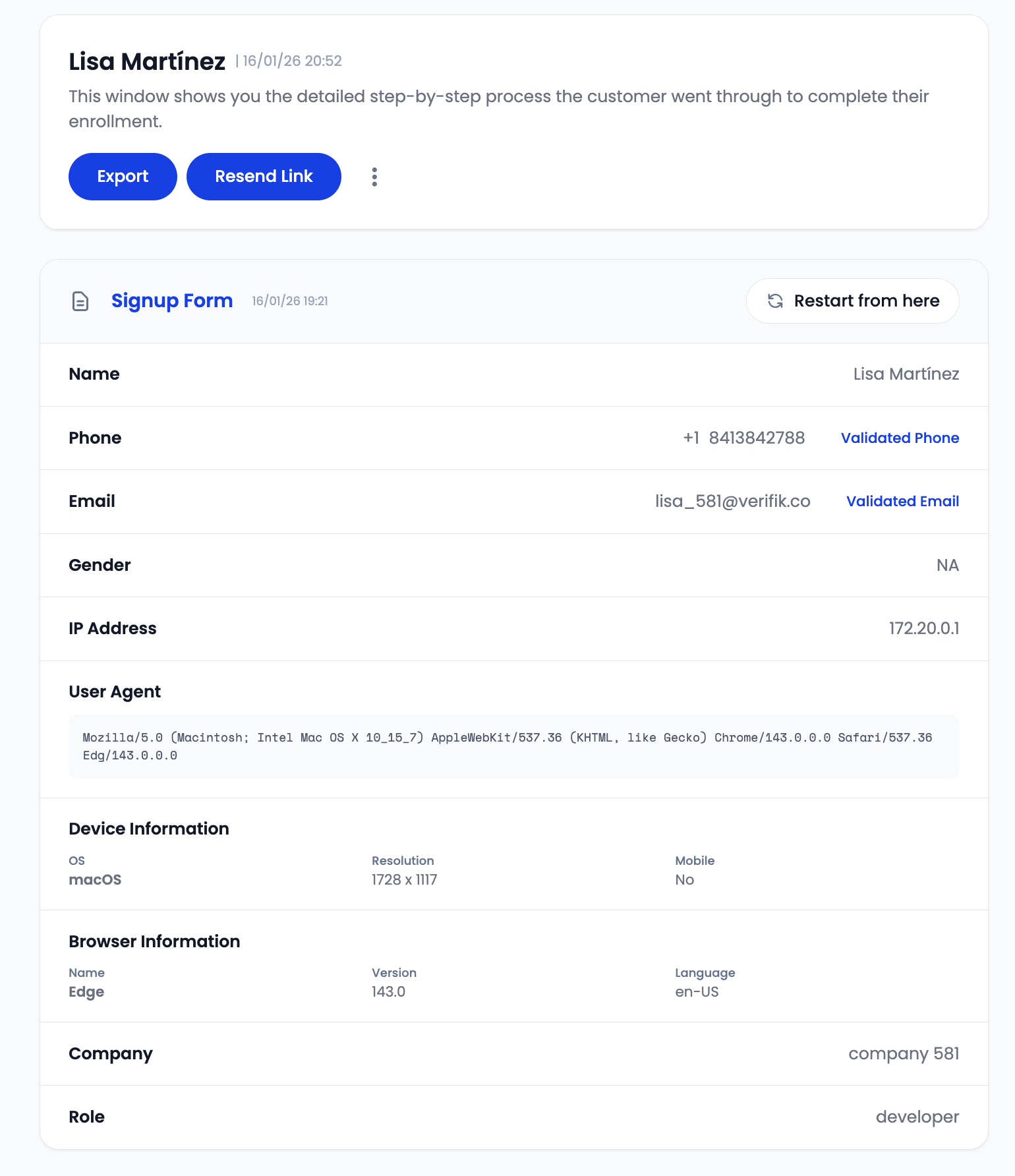
When viewing a user's profile, you can see all the information they provided during the initial registration process.
Registration Data Available
-
Personal Information:
- First name and last name
- Full name as entered
- Date of birth (if collected)
-
Contact Information:
- Email address
- Phone number with country code
- Verification status for email and phone
-
Additional Information (if configured):
- Company name
- Role or position
- Any custom fields configured for your project
-
Registration Metadata:
- Registration timestamp
- IP address (if logged)
- Device information
- Referral source (if applicable)
Verification Status Indicators
Each piece of information shows its verification status:
- ✓ Verified: Successfully verified (email OTP, phone OTP, etc.)
- ⏳ Pending: Verification in progress or not yet completed
- ✗ Failed: Verification failed or expired
- ⚠️ Warning: Verification completed but with issues
All registration information is displayed exactly as the user entered it. Compare this with the document information to identify any discrepancies that may require attention.
Resend Enrollment Link
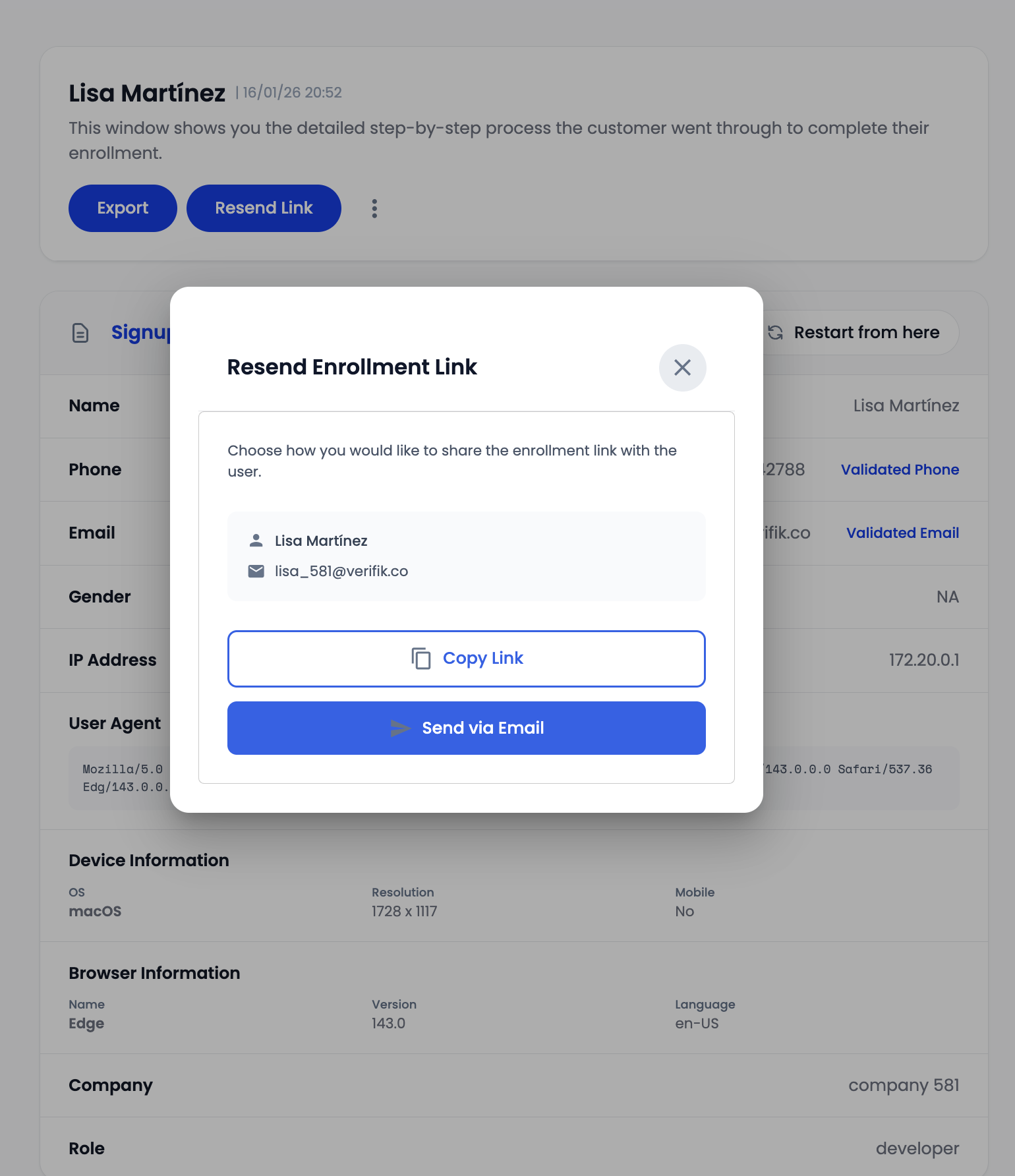
Administrators can resend enrollment links to users who may not have completed the process or need to restart their verification.
When to Resend Enrollment Links
Common scenarios for resending enrollment links:
- Incomplete Enrollment: User started but didn't finish the process
- Expired Link: The original enrollment link has expired
- User Request: User contacted support requesting a new link
- Technical Issues: User experienced technical problems during enrollment
- Re-enrollment: User needs to complete the process again after rejection
Resend Process
- Select User: Navigate to the user's profile from the user list
- Access Resend Option: Click on "Resend Enrollment Link" or similar action button
- Confirm Action: Confirm that you want to send a new enrollment link
- Link Sent: The system sends a new enrollment link to the user's registered email address
Link Configuration
- Expiration: New links typically have the same expiration settings as configured for your project
- One-Time Use: Links are typically single-use to maintain security
- Notification: Users receive an email notification with the new link
Only resend enrollment links when necessary and verify the user's identity before sending. Unauthorized link resends could pose security risks.
Document Scanning Review

The document scanning section provides administrators with a detailed view of all documents uploaded by the user during the KYC process.
Document Information Available
-
Document Type:
- Government ID
- Passport
- Driving License
- Other accepted document types
-
Document Images:
- Front side of the document (high-resolution view)
- Back side of the document (if required)
- Quality indicators and validation status
-
Upload Metadata:
- Upload timestamp
- Capture method (camera or file upload)
- Image quality score
- File size and format
Document Validation Status
Each document shows its validation status:
- ✓ Valid: Document passed all validation checks
- ⚠️ Warning: Document has minor issues but may still be acceptable
- ✗ Invalid: Document failed validation (expired, tampered, etc.)
- ⏳ Processing: Document is still being processed
Document Quality Indicators
- Clarity Score: How clear and readable the document is
- Completeness: Whether all required parts are visible
- Authenticity: Results of tampering detection
- Expiration Status: Whether the document is currently valid
Always review both front and back sides of documents when available. Some security features or important information may be on the back.
OCR Extraction Results
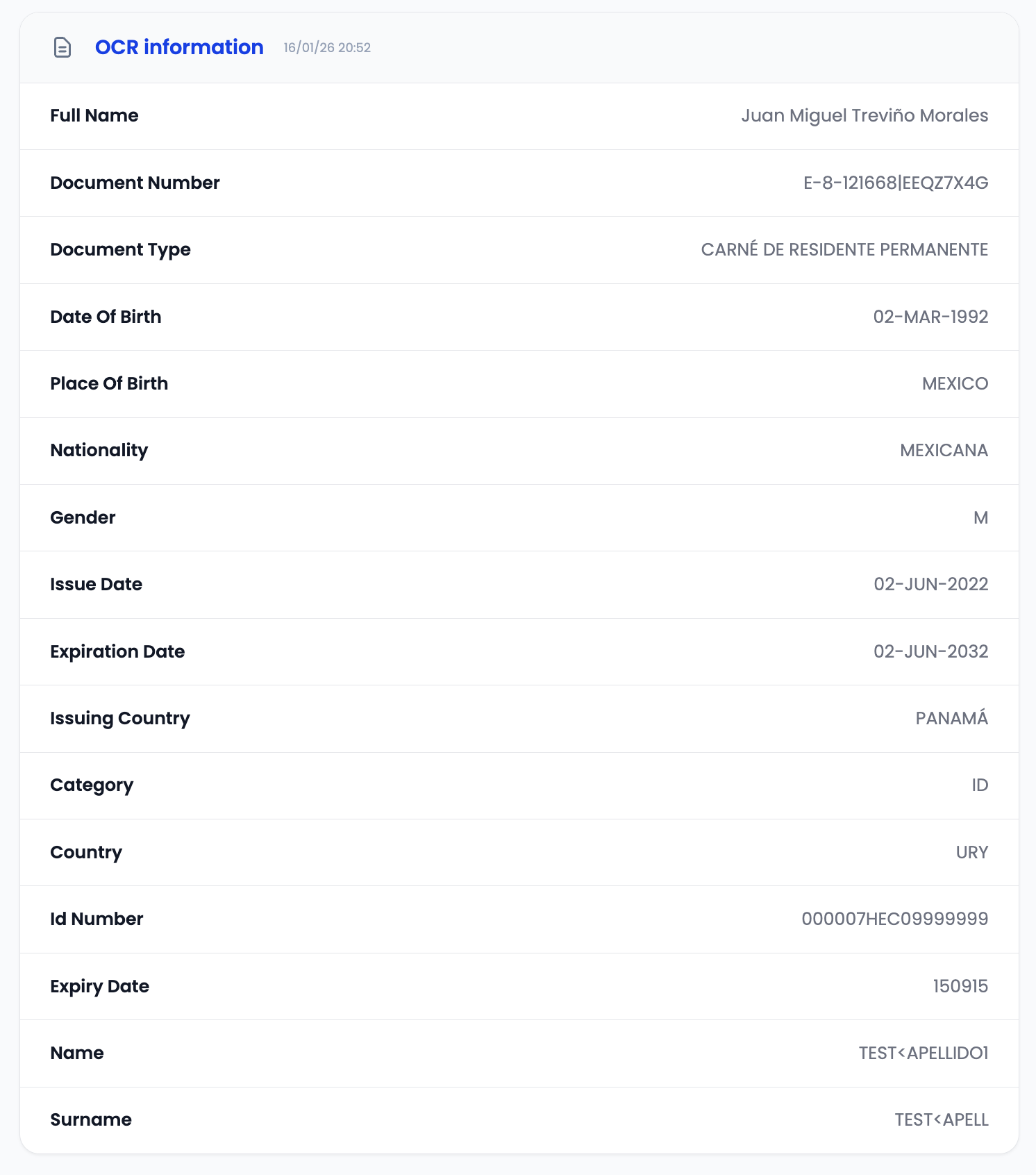
The OCR (Optical Character Recognition) extraction section displays all data automatically extracted from the user's identity document.
Extracted Information
The system extracts and displays the following information from documents:
-
Personal Information:
- Full name (as it appears on the document)
- Date of birth
- Place of birth
- Nationality
- Gender
-
Document Details:
- Document number
- Document type
- Issue date
- Expiration date
- Issuing authority
- Issuing location
-
Additional Information (document-dependent):
- Address
- Blood type
- Height
- Other document-specific fields
OCR Quality Indicators
- Confidence Score: How confident the system is in the extracted data (percentage)
- Field-Level Confidence: Individual confidence scores for each extracted field
- Extraction Status: Whether extraction was successful for all required fields
Data Comparison
The interface highlights:
- Matches: Fields that match between registration data and document data
- Mismatches: Fields that don't match (may require attention)
- Missing Data: Required fields that couldn't be extracted
Review OCR extraction results carefully. While the system is highly accurate, manual verification may be needed for critical fields, especially when confidence scores are lower.
Enrollment Scores & Comparisons

This section provides comprehensive scoring and comparison results from the biometric verification process.
Biometric Scores
-
Liveness Score:
- Indicates how confident the system is that the user is a live person
- Typically displayed as a percentage (e.g., 85%)
- Higher scores indicate stronger liveness detection
-
Face Comparison Score:
- Similarity score between the selfie and the document photo
- Typically displayed as a percentage (e.g., 92%)
- Indicates how well the faces match
- Thresholds are configurable per project
Score Breakdown
The interface may show:
- Overall Score: Combined or weighted score from all verification steps
- Step-by-Step Scores: Individual scores for each verification component
- Threshold Comparison: Whether scores meet configured thresholds
- Risk Level: Overall risk assessment based on scores
Comparison Results
-
Name Matching:
- Comparison between registration name and document name
- Highlights exact matches and variations
- May account for common name variations
-
Face Matching:
- Visual comparison indicators
- Side-by-side view of document photo and selfie
- Matching confidence percentage
-
Data Consistency:
- Cross-field validation results
- Consistency checks across all provided information
Score Interpretation
- High Scores (85%+): Strong match against the hosted default threshold (
0.85), typically auto-approved - Medium Scores (70-84%): May require manual review; common for printed-document faces vs live selfies even when the person is the same
- Near API minimum (~67%): Allowed on direct face-recognition APIs (
0.67–0.95); only appropriate if the project threshold was lowered after testing false-accept risk - Low Scores (well below your project threshold): Likely rejection or requires investigation
Scores below the configured threshold should be carefully reviewed. Consider the context, document quality, and other factors before making a final decision. FaceVerification history is available via app-registration populate (compareFaceVerification), not a public GET-by-verification-id; records expire after about 90 days in production. For the full integrator recipe, see the SmartEnroll API Companion.
Criminal Record Checks
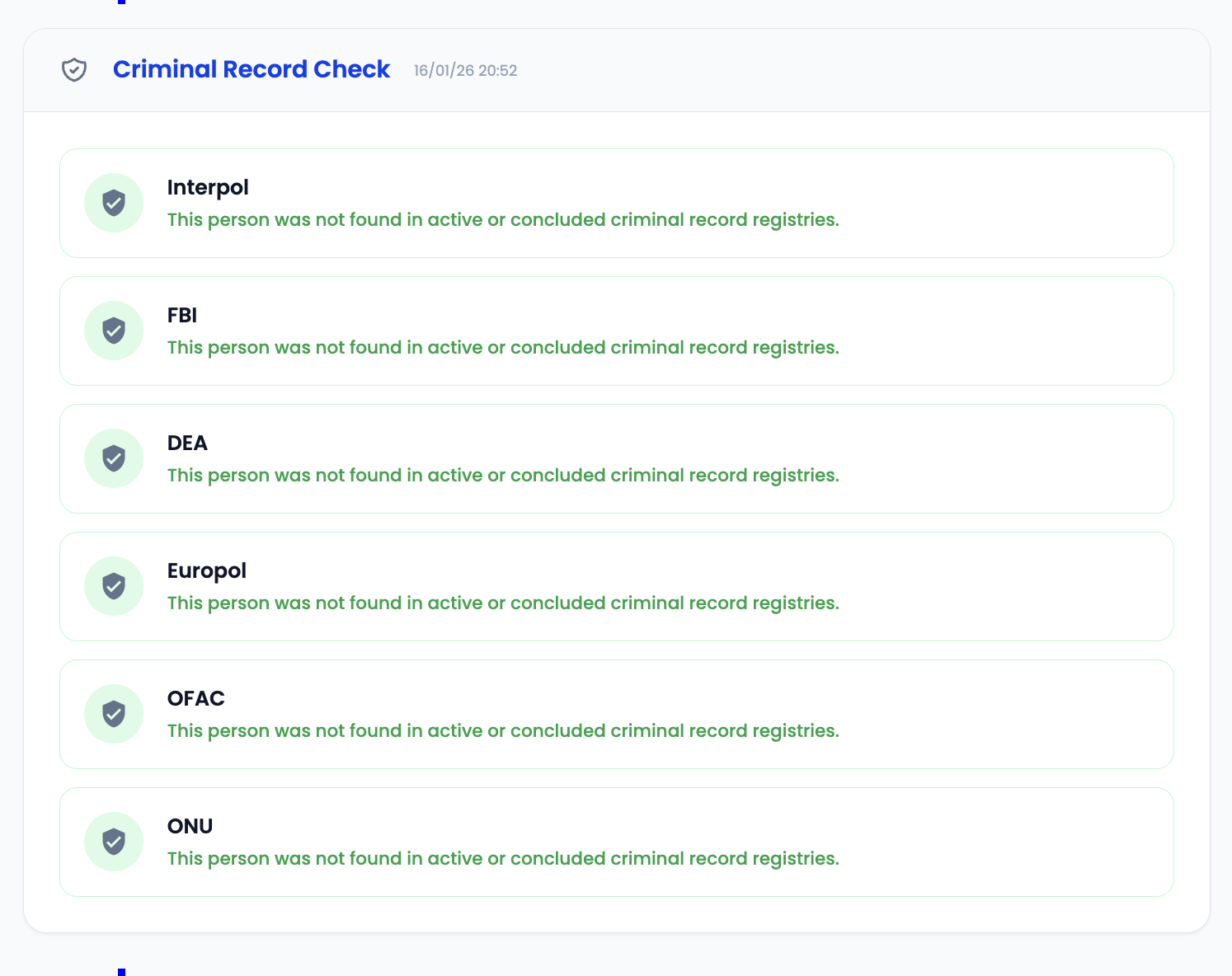
If your SmartEnroll project is configured with database screening, this section displays the results of criminal record and background checks.
Background Check Results
-
Criminal Record Status:
- Clean record indicator
- Record found indicator
- Check status (pending, completed, failed)
-
Database Screening Results:
- Government database checks
- Blacklist verification
- Watchlist screening
- Sanctions list checks
Check Details
For each background check performed:
- Check Type: Type of background check (criminal records, sanctions, etc.)
- Database Source: Which database was queried
- Result: Pass, Fail, or No Match Found
- Date Performed: When the check was executed
- Details: Additional information if records were found
Risk Indicators
- ✓ Clean: No records found in any checked database
- ⚠️ Warning: Minor issues or records found that may require review
- ✗ Alert: Significant records found that may require rejection
Compliance Information
- Regulatory Compliance: Whether checks meet regulatory requirements
- Check Coverage: Which databases were included in the screening
- Update Frequency: How current the database information is
Criminal record checks and background checks must comply with local regulations. Ensure your project configuration meets all applicable legal requirements for your jurisdiction.
Result Verdict & Actions
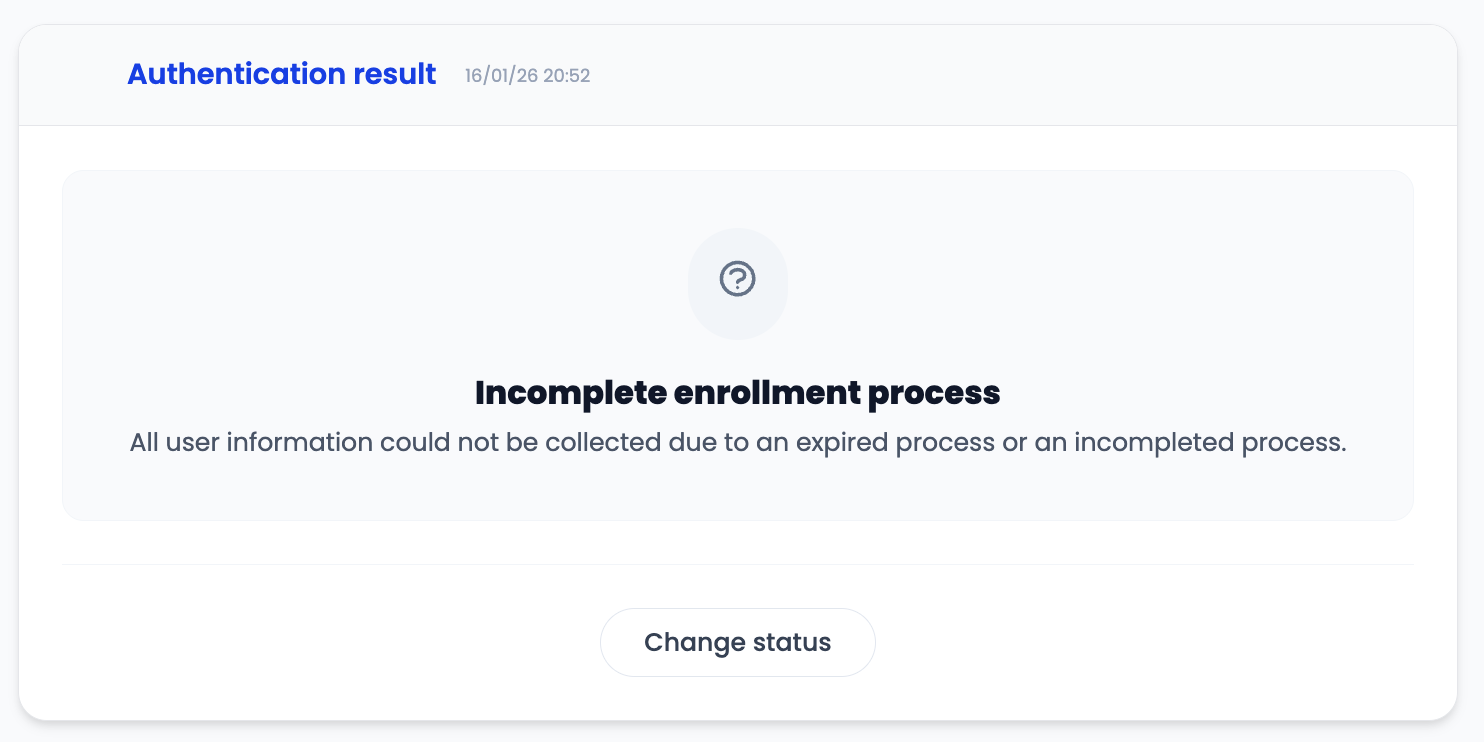
The final section allows administrators to review the overall verification result and take appropriate actions.
Verification Status
The system displays the current verification status:
- ✓ Approved: User has passed all verification requirements
- ✗ Rejected: User has been rejected based on verification results
- ⏳ Pending: Verification is still in progress
- ⚠️ Under Review: Manual review is required
Automated Decision
If automated decision-making is enabled:
- Auto-Approved: System automatically approved based on scores and checks
- Auto-Rejected: System automatically rejected based on failed criteria
- Flagged for Review: System flagged for manual review due to borderline scores or issues
Manual Override
Administrators can manually change the verification result:
Approve User
-
When to Use:
- Scores are borderline but acceptable
- Document quality issues that don't affect validity
- False positives in background checks
- Other extenuating circumstances
-
Process:
- Review all verification data
- Click "Approve" or "Override to Approve"
- Add optional notes explaining the decision
- Confirm the action
Reject User
-
When to Use:
- Failed verification requirements
- Document authenticity concerns
- Background check issues
- Policy violations
-
Process:
- Review all verification data
- Click "Reject" or "Override to Reject"
- Select rejection reason from predefined list
- Add detailed notes explaining the rejection
- Confirm the action
Request Additional Information
-
When to Use:
- Missing or unclear information
- Need for additional documentation
- Clarification required
-
Process:
- Click "Request Information"
- Specify what information is needed
- Send notification to user
- User can provide additional information and resubmit
Decision History
The interface maintains a complete audit trail:
- All Status Changes: History of all status changes
- Decision Makers: Who made each decision
- Timestamps: When each decision was made
- Notes: Comments and notes added with each decision
- Reason Codes: Categorized reasons for rejections or approvals
Notification Settings
- User Notifications: Whether users are notified of status changes
- Email Templates: Customizable email templates for approvals/rejections
- Webhook Integration: Automatic notifications to your systems
Manual overrides should be used judiciously and documented thoroughly. All decisions should be based on clear policies and compliance requirements.
Best Practices for Admin Review
Review Workflow
- Start with Overview: Review the user list and identify users requiring attention
- Check Registration Data: Verify all information provided during sign-up
- Review Documents: Examine document images for quality and authenticity
- Verify OCR Extraction: Ensure extracted data is accurate and complete
- Analyze Scores: Review biometric scores and comparison results
- Check Background: Review any background check results
- Make Decision: Based on all information, make an informed decision
- Document Actions: Add notes explaining any manual decisions
Red Flags to Watch For
-
Document Issues:
- Expired documents
- Poor image quality
- Signs of tampering
- Mismatched information
-
Biometric Concerns:
- Low liveness scores
- Poor face matching
- Multiple failed attempts
-
Data Inconsistencies:
- Name mismatches
- Date discrepancies
- Address inconsistencies
-
Background Check Alerts:
- Criminal records
- Sanctions list matches
- Blacklist hits
Compliance Considerations
- Data Privacy: Ensure all data handling complies with privacy regulations
- Audit Trails: Maintain complete records of all decisions
- Consistency: Apply policies consistently across all reviews
- Documentation: Document all manual overrides and exceptions
Search and Filter Capabilities
Search Options
- By Name: Search for users by first name, last name, or full name
- By Email: Find users by email address
- By Document Number: Search using document identification numbers
- By Phone: Find users by phone number
Filter Options
- Status Filter: Filter by verification status (Pending, Approved, Rejected, etc.)
- Date Range: Filter by registration date or verification date
- Score Range: Filter users by biometric scores
- Document Type: Filter by type of document submitted
- Country: Filter by user's country
- Project: Filter by specific SmartEnroll project
Export Capabilities
- CSV Export: Export user lists with selected data fields
- PDF Reports: Generate detailed reports for specific users
- Bulk Actions: Perform actions on multiple users at once
Security and Access Control
Role-Based Access
- Admin: Full access to all review features and manual overrides
- Reviewer: Can review and make recommendations but may have limited override capabilities
- Viewer: Read-only access to review information
Audit Logging
All actions are logged:
- User Access: Who accessed which user's information
- Decision Changes: All status changes and who made them
- Data Exports: When and by whom data was exported
- Link Resends: When enrollment links were resent
Data Protection
- Encryption: All data is encrypted in transit and at rest
- Access Controls: Role-based access ensures only authorized personnel can view sensitive information
- Retention Policies: Data retention follows configured policies and regulatory requirements
Support and Troubleshooting
Common Issues
Issue: Cannot see user in the list
- Solution: Check filters, ensure user has completed registration, verify project assignment
Issue: Documents not displaying
- Solution: Check image format, verify upload was successful, check browser compatibility
Issue: Scores not updating
- Solution: Wait for processing to complete, refresh the page, check system status
Getting Help
- Documentation: Refer to this guide and other SmartEnroll documentation
- Support Team: Contact Verifik support for technical assistance
- Training: Request admin training sessions for your team
Frequently Asked Questions
How long does it take for verification results to appear?
Results typically appear within minutes of user completion, though complex background checks may take longer.
Can I bulk approve or reject users?
Yes, bulk actions are available for users meeting specific criteria. Use filters to select groups of users.
What happens when I override an automated decision?
The override is logged in the audit trail, and the user's status is updated immediately. Notifications are sent based on your configuration.
How do I export user data for compliance reporting?
Use the export feature to generate CSV or PDF reports with selected data fields.
Can I customize the review interface?
Some customization options are available. Contact support for advanced customization needs.
Set up regular review schedules to ensure timely processing of pending verifications. This improves user experience and maintains compliance.
Always review all available information before making manual decisions. Incomplete reviews can lead to compliance issues or security risks.